

1. Creating an account on KYVALA POC
First, I click on “I don’t have an account” then I complete the form offered to me
- I fill in my title, surname, first name, organization name, phone number and email address.
- I choose a login and password that I confirm.
- I receive an e-mail confirming the creation of my KYVALA POC account.

2. To download the TOKEN mobile Apps
- I scan the TOKEN Apps download qr code with my phone ...
- I take care to authorise application downloads from unknown sources
- I click on Install
Download TOKEN APP
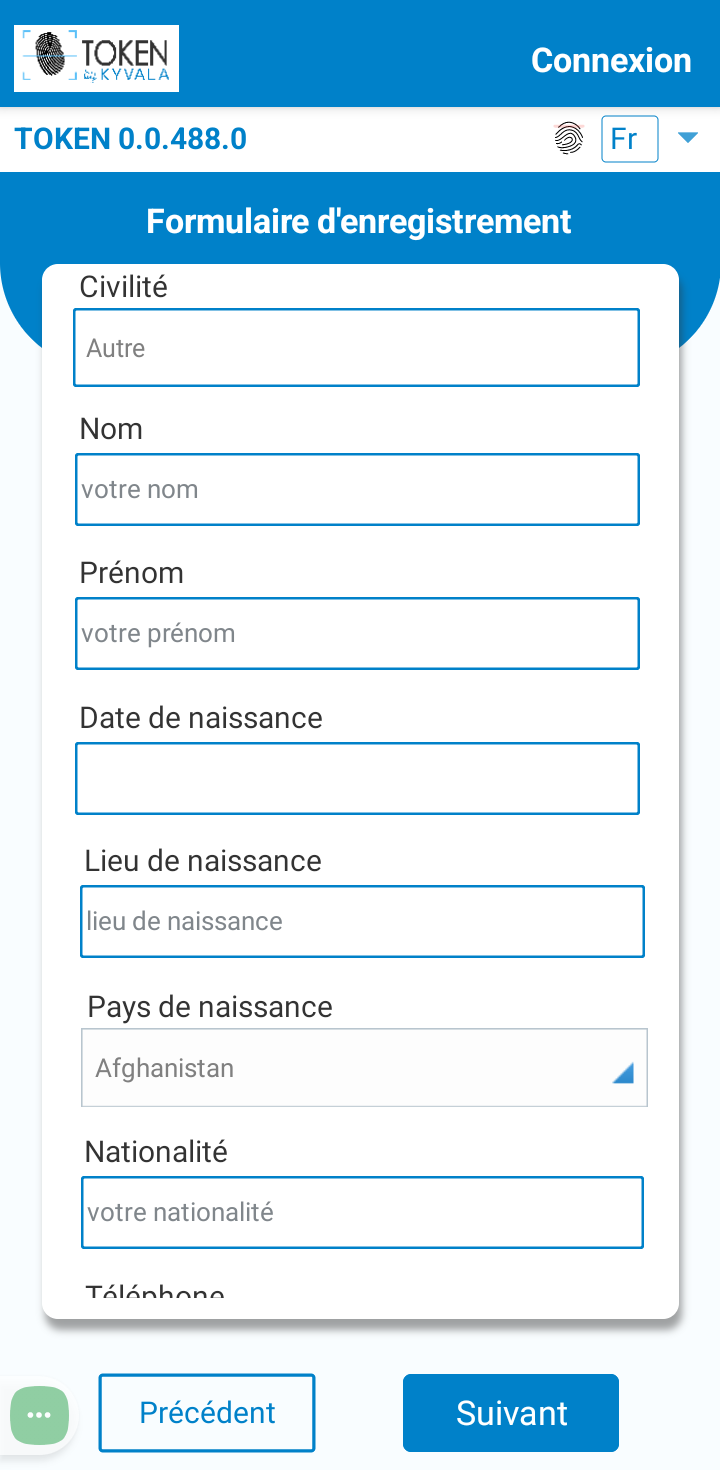
3. To create TOKEN account
I click on the TOKEN icon to open the application. I click on "I don't have an account".I complete the registration form
- Personal information : I fill in: title, surname, first name, date of birth, place of birth, country of birth, nationality, telephone number, country of residence, town of residence, email address, phone number, then I click on "next"
- Identity information : I specify the type of identity document I'm going to use; then I fill in the document number, date of issue, expiry date, extension date if applicable, front photo, back photo, then I click on "next"
- Biometric information : By following all the instructions, I capture my face to take an identity selfie. I capture the fingerprints of the 5 fingers on my left hand and then those of my right hand, then I click on "next"
- signature : I choose a 06-digit pin code, add my signature. Then I click on "validate".
- I will receive an e-mail confirming the creation of my TOKEN account.
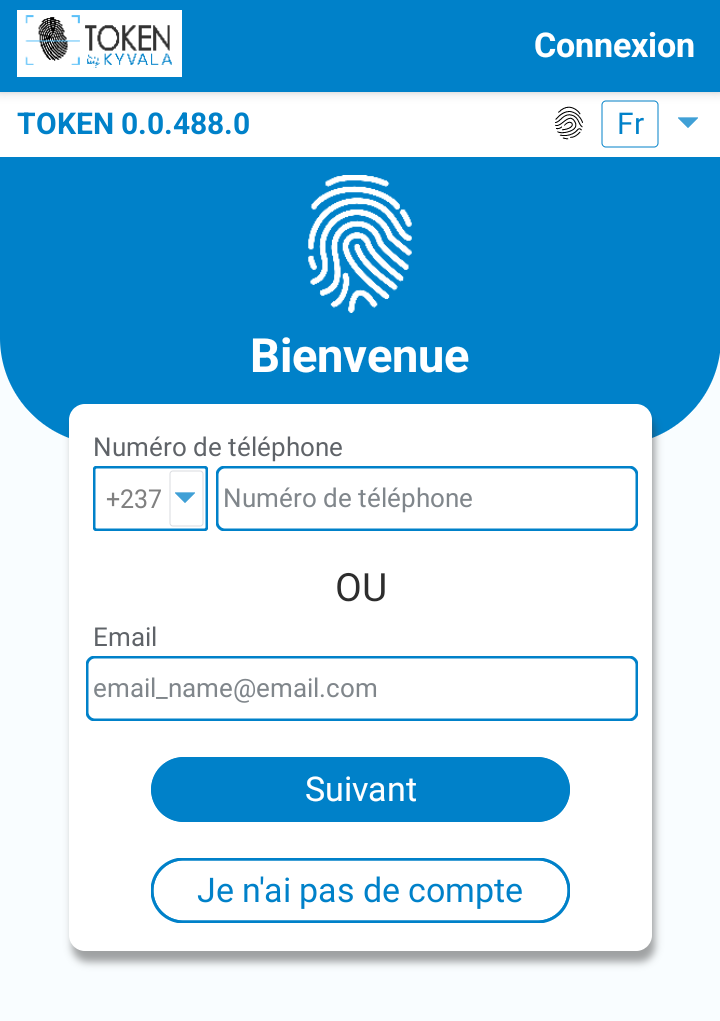
4. To activate my TOKEN account
I click on the TOKEN icon to open the application
- I identify myself by entering my telephone number or email address. I click on « next »
- I enter my pin code and confirm.
- If the information entered is correct, I am immediately redirected to the TOKEN home window.

5. To access my KYVALA POC account
I open a browser and go to my.kyvala.com and follow the following steps :
- I log in with my login and password. I am directed to the KYVALA POC security page, which gives me the information I need to successfully complete my connection request.
- I receive a confirmation request on my phone. I am asked to identify myself formally if I am the one who initiated the connection request
- I confirm the biometric procedure within the time allowed and I can safely access my private area in KYVALA POC
- And if my account need multi-validation? In this case, the second signer and/or the other people who need to co-validate are notified of my intention to access the shared space and I wait for each of these people to agree to my request..
Contact
Our team of professionals is at your disposal for all your requests for information.
Address
128, City Road,
London. EC1 V, 2NX, UNITED KINGDOM
Call Us
00237 24770782
Email Us
info@kyvalaid.com
contact@kyvalaid.com
Working Hours
Mon - Fri: 8.30AM to 5.30PM